Home › Free Resources › Learning Center › How to organize construction project folders
Manage WorkHow to organize construction project folders
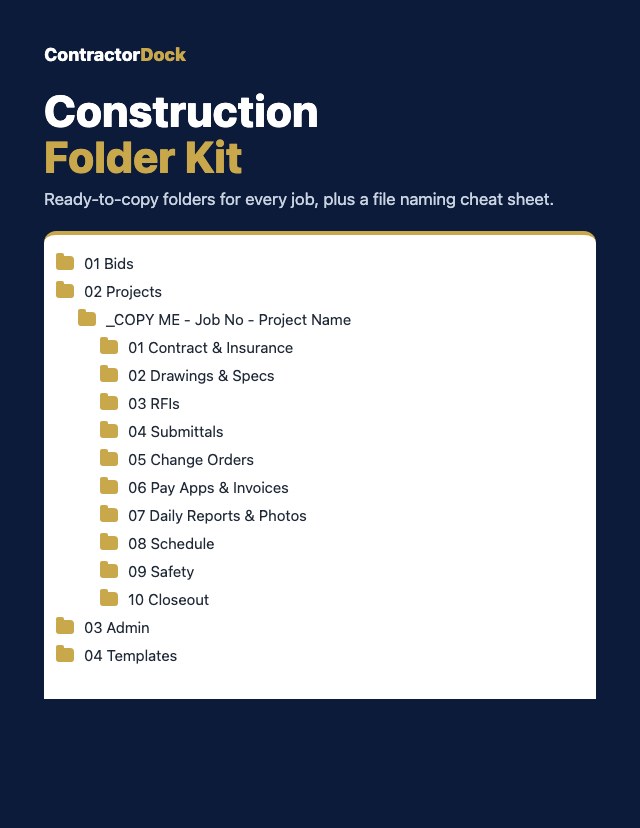
Get the Construction Folder Kit
Ready-to-copy folders for your bids, every job and your office, plus a one-page file naming cheat sheet. Find any document in seconds.
Download the free kitWhere’s the signed change order from March? If finding it takes more than a few seconds, the problem usually isn’t you. It’s that every job gets filed a little differently.
A good folder system is boring on purpose. Same folders, same order, same file names, on every job. Here’s a setup that works for commercial GCs and subs, whether you use OneDrive, Google Drive, Dropbox or a server in the office.
Why it matters
A messy folder works fine until you need something fast: the owner disputes a change order, the GC asks for your insurance certificate, an inspector wants the approved submittal, or it’s pay app day. That’s when “scan001.pdf” and “final FINAL v2.docx” start costing time and money.
Organized files also protect you. Signed change orders, directives, daily reports and dated photos are the backup you lean on when there’s a payment dispute or a claim.
Start at the top: four company folders
Keep the top level short. Put a number in front of each folder so they stay in the same order on every computer.
- 01 Bids: every bid you price, by year, then by project. When you win one, move it to Projects.
- 02 Projects: every job you won, one folder per job.
- 03 Admin: licenses, insurance, HR, your safety program and accounting. Company paperwork that isn’t tied to one job.
- 04 Templates: your blank proposal, RFI, change order and invoice forms, so nobody starts from scratch.
The project folder: the same ten folders, every time
Name each job folder with your job number and the project name, for example 2611 Northside Medical. Inside, use the same ten folders on every job:
- 01 Contract & Insurance: the signed contract or subcontract, bonds, insurance certificates, notice to proceed.
- 02 Drawings & Specs: a Current folder with only the latest sheets, and an Old folder for superseded sheets.
- 03 RFIs: one file per RFI, numbered, with the response saved next to it.
- 04 Submittals: by spec section, with the reviewer’s returned copy and your submittal log.
- 05 Change Orders: requests, backup and signed change orders, all numbered.
- 06 Pay Apps & Invoices: every billing, the schedule of values, payment records and lien waivers.
- 07 Daily Reports & Photos: daily reports by date, and photos by date or area.
- 08 Schedule: the baseline schedule, updates and look-aheads.
- 09 Safety: the site safety plan, toolbox talks, inspections and incident reports.
- 10 Closeout: punch lists, warranties, O&M manuals and as-builts.
Because every job looks the same, anyone in the office, or you on your phone at the jobsite, can find anything without asking.
One naming rule for every file
Folders are half the system. File names are the other half. Use one rule:
DATE_PROJECT_TYPE_REV 2026-10-12_Northside_CO-003_Rev1.pdf
- Date first, year-month-day. Files then sort themselves in order, oldest to newest.
- Project: one short word for the job, the same every time.
- Type and number: a short code like CO-003, RFI-014 or INV-1007, so you never have two documents called “Change Order.”
- Revision: Rev0 for the first version, then Rev1, Rev2. No more “final final.”
Skip spaces and symbols like # % / : in file names so they open on every computer and phone. The free kit includes a one-page cheat sheet with type codes you can print.
Three habits that make it stick
- Copy the blank project folder for every new job. Don’t build it from memory. That’s how folders drift.
- File it the same day. Photos and daily reports pile up fast. Five minutes at the end of the day beats an afternoon at the end of the month.
- When drawings change, move the old sheets to Old. Never delete them. They show what you priced and built from.
Where to keep it
Use a shared drive your whole team can reach, with the same structure for everyone. Give office staff and PMs access to Projects and Bids, and limit Admin > HR to the people who need it. Most cloud drives also keep version history, which is a good backup when someone saves over a file.
Get the folders already built
The free Construction Folder Kit has this whole structure ready to copy, a short “what goes here” note in every folder, a blank bid folder and a blank project folder, and the file naming cheat sheet. Unzip it, copy it to your drive, and your next job starts organized.
Rename or add folders to fit how your company works. What matters is using the same structure on every job.
Set it up in 10 minutes
Download the folders already built, plus the naming cheat sheet.
Get the free Folder KitNeed a little more help?
Start with a $197 strategy session. If you hire us for a project within 30 days, the $197 comes off the price.